Friday, March 22, 2013

Using Embedded Resources - C#

If you have a windows form application in which you want to use data which is embedded in the application but not open for the users to edit, you can use the following.

In VS IDE, Solution Explorer, select the project name, click on it to show the Menu. Select New --> Text File
Name the text file. Now it is added under the project resources.

Set the Resource Type as Embedded Resource.
Also set the copy preference to copy to output folder.

Include this code in your program to access the file.
You can use streamreader to read or write to the file.

Assembly _assembly;
StreamReader reader;
_assembly = Assembly.GetExecutingAssembly();
reader = new StreamReader(_assembly.GetManifestResourceStream("WindowsFormsApplication1.textfile.txt"));

Sunday, March 3, 2013

Treating people right in the workplace

 Treating people right applies to the workplace as it does elsewhere.  Employees who feel that they are treated right perform better and have a positive impact on their peers and it helps to create a healthy environment. Primarily, the middle management is responsible for modelling and encouraging acceptable behaviour. Treating people right means a lot of different things to different people but basically consists of the below.

A. Respecting people
B Being reasonable when setting expectations
C Being considerate
D Being fair 

A. Respecting people

Respecting people is no rocket science. But in today's culture of disrespect, people need to be reminded that human beings are more than gadgets and a fair amount of discretion is to be exercised in all aspects of interacting with people.

 Do's and dont's

1. Never reprimand your colleague in a team setting. It is extremely humiliating to be put down in front of people even when confrontation is inevitable. Deal with such cases one-on-one and set expectations.

2. Never walk over to your colleague's desk for a discussion without prior notice. People dread not having enough time for review and being caught off-guard when faced with questions. As much as possible, it makes more sense to have planned meetings rather than interrupting people while working. 

3. Never interrupt meetings. Of course, this comes with an exception. For extremely urgent situations, It makes more sense to request the concerned person out of the meeting rather than interrupting and adjourning the meeting for no good reason.

4. Never yell at people even if you are angry. Use a professional tone for official discussions. Never raise your voice in order to improve the quality of your argument. For things that need immediate attention, specify the course of action with authority so that what needs to be done, gets done at the earliest.  Hold back the retrospective and causal analysis for a later time. It helps everyone get a better perspective of the problem and work out ways to avoid it.

5. Never talk down on your boss in front of your subordinates even if you have an extremely difficult boss. Doing so gives them a cue that slandering and backbiting is acceptable. It won't be long before they start doing the same.

6. Never call a meeting that extends into lunch or just before the end of work hours. No one likes to miss an appointment or a meal and medication. Besides, they'd be distracted anyway.

 7. Never call a meeting without making the timeframe and agenda clear. Stick to time and watch out for side-tracking from the agenda. If you are prone to losing the sense of time, get someone to alert you. Specifying the time and sticking to it, helps others plan their work better.

B. Being reasonable when setting expectations

Many people have unspoken expectations of people and expect them to read their mind. The best way to get people to meet your expectations to set realistic and reasonable expectations. In that way, people don't have to do any guessing and no one will have nasty surprises.

 1. Always minute meetings and assign responsibilities and expected closure date for action items. Remember to follow up on action items from the previous meetings.

 2. Be realistic. Never assign a task to someone at 5:00  PM and expect it to be done by the next morning. Try to jointly arrive at a realistic timeline.

C Being considerate

Most modern governments have policies to ensure that employees are treated considerately. Most of this has to do with employee's human rights.

 1. When someone calls in sick, do not expect them to complete their work. Always have a business continuity plan in place for such contingencies

2. When someone is unwell and has reported to work, do not force them  to work overtime. Try to reassign the task to someone else who might be able to take it up.

3. When someone has an emergency to take care of, do not expect them to finish any pending tasks. Always have a business continuity plan in place for such contingencies.

4. As much as possible when people are recovering from illness, encourage them to telecommute. It helps them recover faster and prevents them spreading the sickness to the rest of the people in office.

5. Do not micromanage people and check what they are upto every 15 minutes. It can be extremely annoying.

6. When people are late or miss the deadline once in a while, do not make an issue out of it. Do not major on the minors.

7. Some employees may not have a proper work life balance or personal commitments. Hence, not everyone can work after office hours, depending on personal constraints. Understand the strengths and limitations of your team. 

D Being fair 

All human beings want to be treated fairly. When people feel that they have been mistreated, they lose interest and performance drops.

 1. Do not expect a person who has burned the midnight oil for a deliverable to be out to be in office promptly the next day. Make allowances in such cases. This will motivate them to go the extra mile, when needed.

2. Establish the evaluation criteria for your staff beforehand so that no one has surprises. Keep short accounts on feedback and do not wait for one whole year to pass by.

3. Make a conscious effort not to be biased. Evaluate incidents and work products objectively and have data to back your decisions. It will encourage your subordinates to do the same.

Monday, August 8, 2011

Installing QTP/ Service Test/ HP functional test concurrent license

QTP is licensed as either seat or concurrent license. A seat license is tied to a physical machine and can only be used on that machine. Eg License1 for machine1, license2 for machine2 and so on.

Concurrent license on the other hand is installed on a server and depending on the licenses we buy, any computer on the network can run QTP. Eg. If we have 4 concurrent licenses, at any given time 4 machines can run QTP. QTP can be installed on all machines/ selected machines on the network, but at any given time 4 machines can run qtp.

Concurrent licenses are more popular esp when there are global teams, the licenses can be used in different timezones to get maximum ROI from automation. Also since the license is not tied to a machine, but tied to the server, there is more flexibility in usage. Resources who are telecommuting can also use the commuter license when they are travelling if they cannot connect to the concurrent license server.

Previously, QTP was licensed separately, but in recent times, HP has packaged QTP and Service Test into a bundle called HP Functional Test. The procedure for installing the license is the same as before. You need not install QTP and Service Test concurrent licenses separately. The only thing you need to install is the HP Functional Test concurrent license and you can use both QTP and HP service Test. Also all add-ins are available as part of the package. No separate licenses for add-ins.

Prerequisites:

1. A windows 2003 server (machines with other OS can also be used as the server. Check the installation guide)

2. QTP concurrent license e-Software Delivery Confirmation

3. A client machine (to install QTP). Note: QTP can also be installed on the windows 2003 server on which the concurrent license is installed. But in real time testing teams, QTP will be installed on multiple machines which talk to the concurrent license server for license validation.

Steps:

1. Connect to the client machine. Ping the server. You need to ensure that there is connectivity between the client and the license server.

2. There will be a link to the software in the e-software delivery confirmation. Register and login to the site, if you have not done so before.

3. If you click on the get software tab, download the HP UFT 11.00 CC Eng SW E-Media, Software, QTP 11.00 English ( T6510-15066.iso )
Basically, it is the QTP installer.

4. Copy the installer to the windows 2003 server machine. Click on the Install concurrent license server link, HP uses the Sentinel LM license server which will be installed, just follow the instructions on screen.

5. Next, you need to install concurrent license. Click on the install concurrent license link. When you do so, a locking code will be displayed when you follow the on screen instructions.

5. Now, copy the locking code. Click the link for the software e-delivery confirmation again and click on the get licensing tab. When you click get licensing, it will ask for the locking code. Enter the code in the box, and it also will ask you how many licenses you want to activate. You can enter the number of licenses you purchased, once you confirm your details (as the license owner) and enter the email ids to which you want the license code to be sent, you will get the license key displayed on screen. (a string of characters). It will also be emailed to you. Also print the license entitlement certificate and save it for records.

6. Login to the server again and click on install concurrent license key, and you will find a box to enter the license key. Copy paste the code to the box and press confirm. The concurrent license is installed. You will get a message saying that the concurrent license is installed and you need to restart the server.

7. Now, download HP service Test installer and copy it to the client machine. Also copy the QTP installer to the client machine. Install both service test and qtp on the client machine.

8. When you start QTP and service test, it will ask for the license type, select concurrent and enter the ip or the machine name of the server machine. If the server and client are on the same subnet, then you will have no issues.

9. If QTP does nt start up, on the client machine, go to computer--> properties--> environmental variables --> system variables and add variable LSHOST and give the value as the concurrent server name or ip. Now, try opening QTP again, you should be able to connect to the license server.

and you're done!!

The user guide for installing HP functional test is quite comprehensive and has step by step instructions. It is available along with the software. You can find it under the help menu in QTP.

Wednesday, June 29, 2011

Adding a project user group as valid users

The list of Valid users only contains global groups as shown below.


If you want to add project groups as valid users, the values are not shown in the drop down. Entering the value [Project1]\Usergroup throws the error
TF26204: The account you entered is not recognized. Contact your Team Foundation Server administrator to add your account.

If your project name is helloworld and usergroup name is testing, enter [project]\testing and save. Do not replace [project] with your project name.

View XML shows the following value after saving.

Making "Found In Build" a mandatory field

1. Open the Bug work item definition from Process Editor.
2. Select the "Workflow" tab
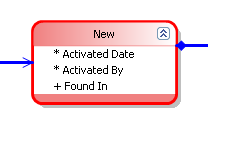
3. Double click the "New" state to open the "Work Flow State Field Rules" window


4. Click "New" and select "Microsoft.VSTS.Build.FoundIn"


4. Click "Rules" and select "Required". Save the work item definition.


5. Now "Found in Build" is added in the state diagram.


6. Once this is done, when creating a new defect, the user cannot save without entering the "found in build"

TFS Defect Workflow Customisation - Adding Values for "Found In Build" as a predefined list when build is not generated from TFS

1. From the process editor, open the work item definition for "Bug"
2. Click on the "Fields" tab and double click "Found In"

2. Click on the "Rules" tab --> "New" and add the value "Allowed Values"


3. Click on the "Allowed Values" tab --> "New" and add the value wanted in ur listbox like "1.0". Repeat to add new values and "save" the work item definition.


Now, when creating a new bug, the values added here, will be autopopulated as a list in the bug.

Tuesday, June 7, 2011

Defect Workflow customisation in TFS

Download and install team foundation server 2010 power tools. The process editor has a user interface using which you can do the workflow customisation.

Open VS2010, connect to the tfs server. You will see the Process editor under Tools Menu.


Go to Tools-->Process Editor--> Work Item Types-->Open WIT from Server.


Select the workitem type "Bug" to edit from the project for which you want to set up the defect workflow.


Go to the workflow tab, there is a diagrammatic representation of the defect workflow provided by default. This can be edited.


The defect workflow consists of

a) State denoted by a red box


b) transition denoted by the transition rules box and connectors


You can use the toolbox to add the states and transitions, by dragging and dropping them onto the workflow pane.


When you right click on a state, you can add/edit an existing Ref Name


Add a new Ref Name/ Click on an existing one to set rules.


We can edit the workflow transition, by double clicking on the transition box.


The default reason and additional reasons can be specified.


Actions can be added as well.


Field references can be added.